

Getting started
Workspace overview
Check your setup progress, review member applications, and track dated membership and money totals.
What this screen is for
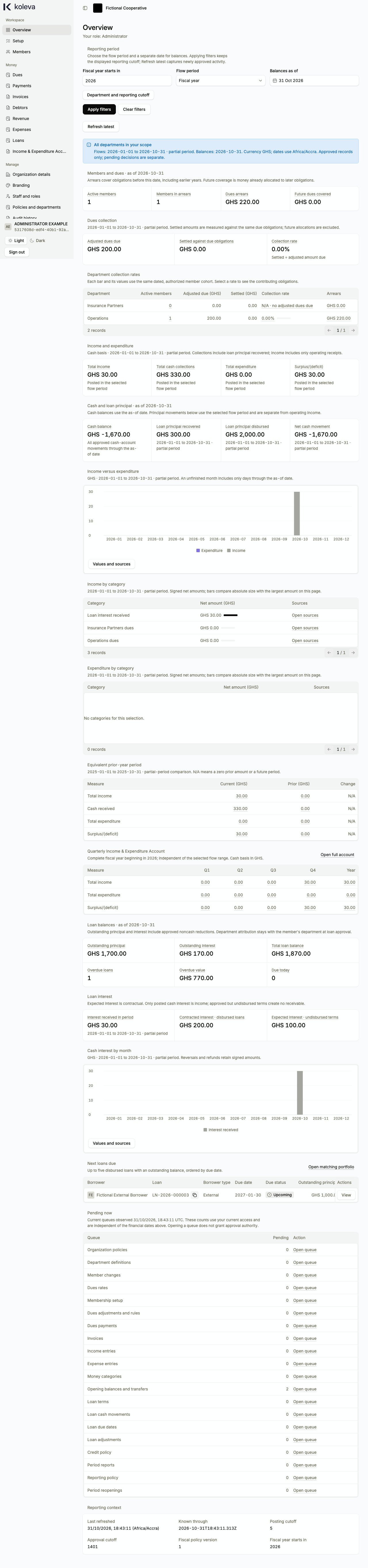
The Overview screen is the home page of your organization workspace at dash.koleva.app. While you are setting up your organization, it shows your progress through the five essential setup steps and points you to the next action. Once your essential setup is complete, it displays your open member application queue, dated membership and money totals, and counts of items waiting for approval.
Before you start
- You need a verified staff account for your organization. Each Koleva account belongs to one organization.
- To see dated membership and money figures, your organization must complete the five essential setup steps first.
- To see organization-wide income, expenditure, cash, and loan summaries, you need an Administrator or Accountant role with two-step verification enabled.
Step by step
- Sign in to
dash.koleva.appand select Overview in the sidebar. - If you are an Administrator and people have applied through your registration link, check the Application queue at the top of the page. Select Review on a submitted application to approve it, request changes, or decline it.
- Under Reporting period, choose the year in Fiscal year starts in, select a Flow period (full year, quarter, or custom dates), and choose a Balances as of date.
- Select Apply filters to update the membership, dues, income, expense, and loan numbers for your chosen period.
- Select Refresh latest when you want to include newly approved records in the figures on screen.
- Select any number, bar, or category link to open the matching records on the Members, Dues, Debtors, Loans, or Income and Expenditure Account screen.
- Scroll to Pending now at the bottom of the page to see current items waiting for review, and select Open queue on any row to review them.
Common questions
Why do I see setup steps instead of numbers on Overview?
Your workspace shows the setup progress card until you finish the five essential setup steps. Once you secure your account, save organization details, receive Koleva verification, approve your organization policy, and set member numbering, the full Overview screen opens.
Do the reporting date filters change the Pending now counts?
No. Application queue and Pending now always show what is waiting for review right now. Only the membership, dues, cash, and loan summaries use your selected reporting dates.
Can I switch to another organization from the sidebar?
No. Every Koleva account belongs to one organization. If you work with a second organization, you use a separate account with a different email address.