

Getting started
Public registration link
Create a shareable web link and Quick Response (QR) code so applicants can apply for membership online.
What this screen is for
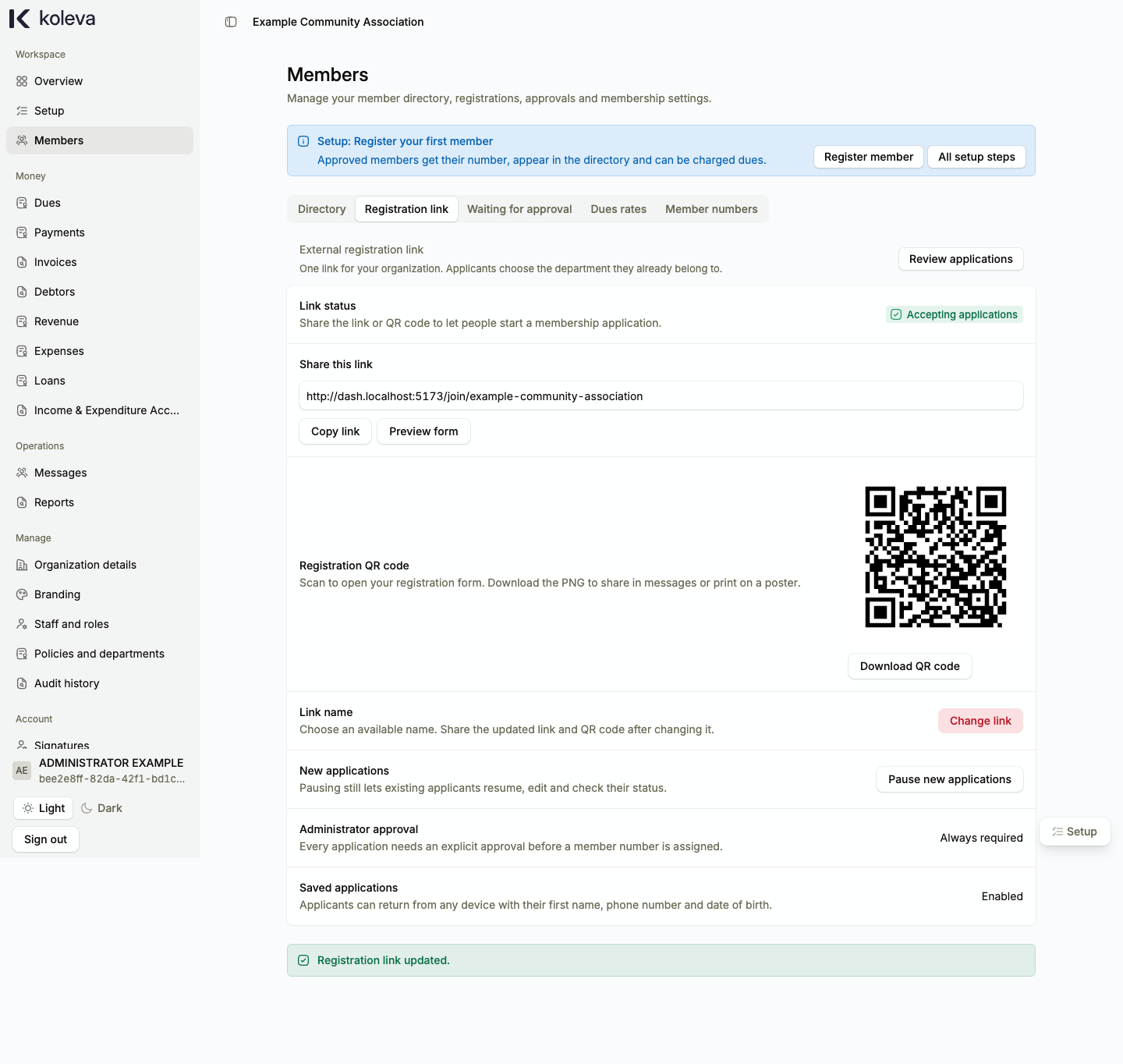
The Registration link tab under Members lets an organization-wide Administrator create and manage one reusable web link and Quick Response (QR) code for new member applications. Applicants use this link to fill out their details, save progress, and submit their application for your review without needing a staff login.
Before you start
- You must be an Administrator with access to all departments.
- Your organization must be verified and have an approved organization policy, member numbering, and at least one active department.
Step by step
- Select Members in the sidebar, then select the Registration link tab.
- Select Create registration link. Koleva suggests a link name based on your workspace name (using lowercase letters, numbers, and hyphens). You can edit the name before saving.
- Select Copy link to share the web address directly, or select Download QR code to save a Portable Network Graphics (PNG) image that you can print on a poster or share in messages.
- Select Preview form if you want to see the application steps as an applicant sees them.
- When applicants start or submit applications, select Review applications (or check the Application queue on Overview) to inspect their details.
- On a submitted application, select Review, confirm the department, joining date, and dues start month, enter a note for the applicant, and choose Approve, Request changes, or Decline.
Common questions
How do applicants continue an unfinished application on another phone or computer?
Applicants open the same registration link, choose Continue or review application, and enter their first name, telephone number, and date of birth. If they use the same browser where they saved their first step, the form reopens their draft automatically.
What happens if I pause new applications?
Selecting Pause new applications stops new people from starting an application. People who already started an application can still use the link to resume their draft, edit their details, or check their approval status.
What happens if I change the link name?
When you change the link name, the old web link and previously downloaded QR code stop working immediately. Saved applications remain safe and can be opened through the new link. Remember to download and share the updated QR code image.