

Money
Payments and receipts
Configure money accounts, record member dues payments, issue official receipts, and handle reversals or refunds.
What this screen is for
The Payments screen manages member dues collections, payment approvals, official receipts, and collection setup. You configure where your organization keeps money (cash, bank, or mobile money) once in Collection setup, and then record member payments across one or more months in a three-step flow.
Before you start
- An Administrator with access to all departments must complete Collection setup (
/payments?view=setup) to save your money accounts (cash, bank, or mobile money), your dues income account name, and whether dues payments require Administrator approval. - At least one staff member must have an authorized signature on the Signatures screen so Koleva can sign official receipts.
- The member you are collecting from must be approved and active, with monthly dues rates set for the months they are paying.
Step by step
- Select Payments in the sidebar. If you are setting up collections for the first time, open the Collection setup tab, review or add your cash, bank, and mobile-money accounts, choose whether payments require approval, and select Save.
- Select Record payment to open the focused payment flow.
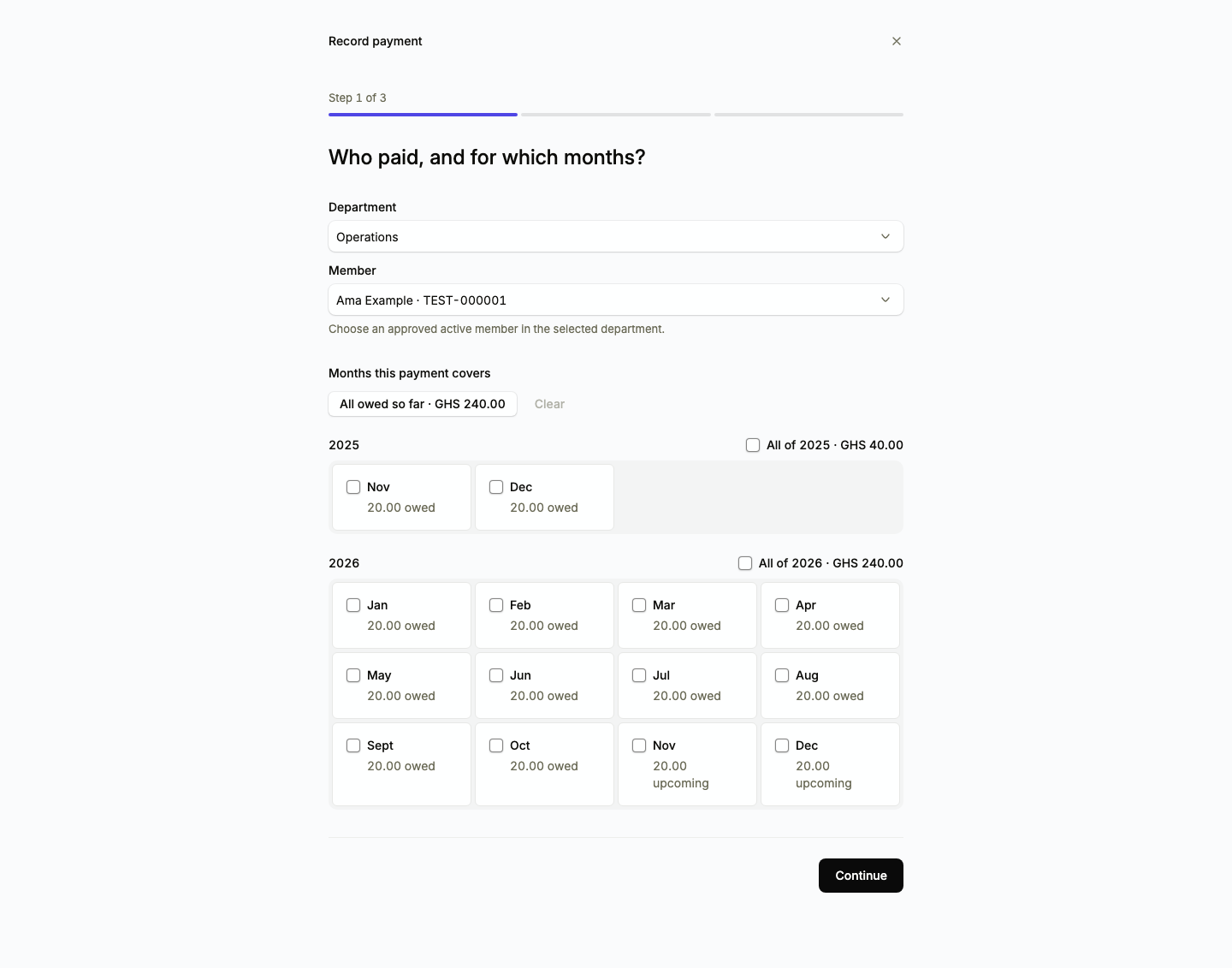
- In Step 1, select the member’s Department and Member name, then tick the months this payment covers. You can tick individual months, select All owed so far, or select a whole year. Select Continue.
- In Step 2, confirm or type the amount received (you can enter a smaller amount for a part payment), choose the actual date the money was received, select the payment method, account, and authorized signatory, and select Continue.
- In Step 3, review the proposed month-by-month allocation, confirm that you received the actual money, and select Send for approval (or Record payment if direct posting is enabled).
- If your organization requires payment approval, an Administrator opens the Awaiting approval tab on Payments, reviews the details, and approves or rejects the payment.
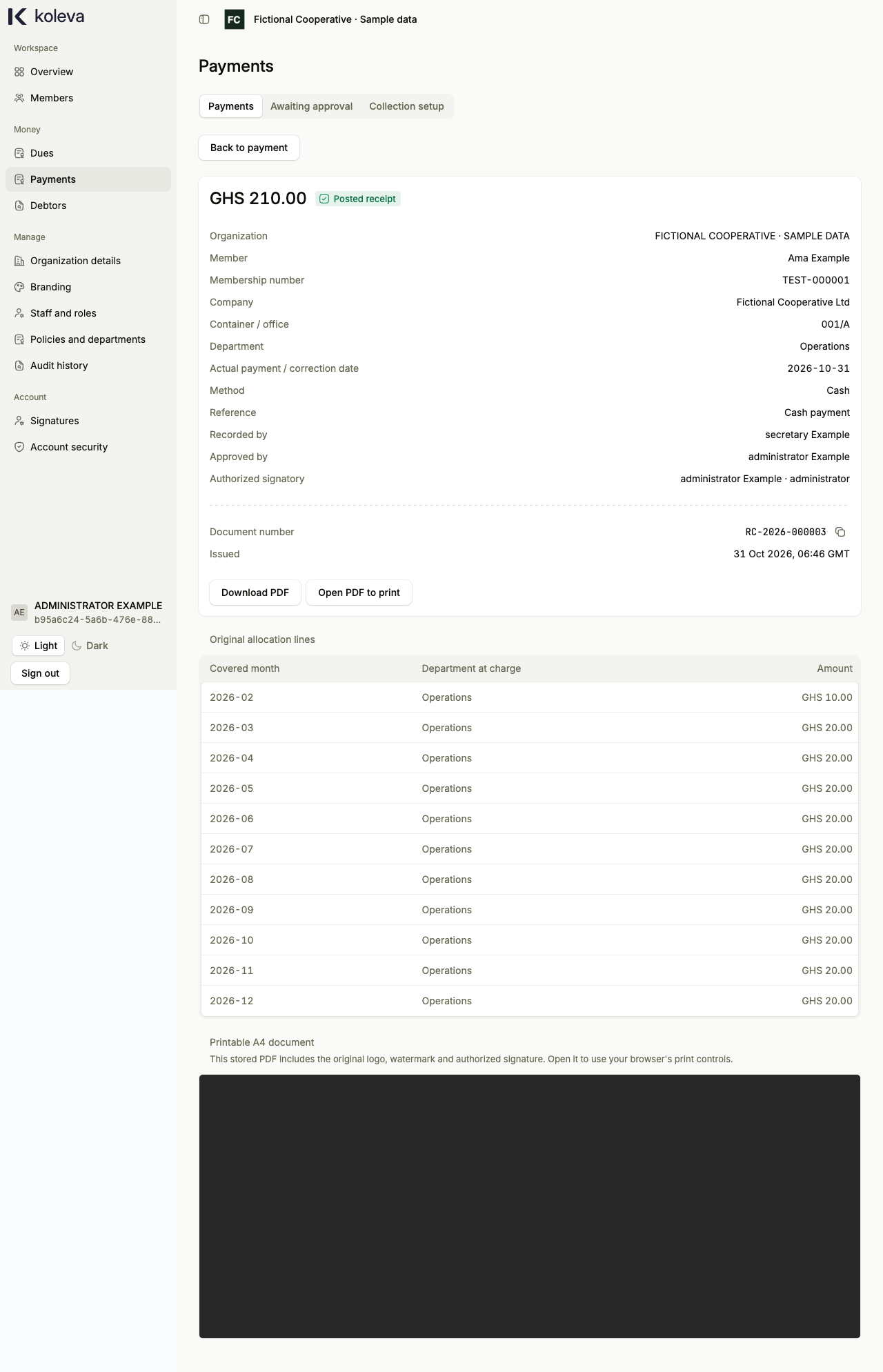
- Once a payment is posted, open it and select Receipt to view, print, or download the official Portable Document Format (PDF) receipt, or email it to the member.
Common questions
Can I record a payment for a past year or for next year in advance?
Yes. Use the Find dues by year picker in Step 1 to select past years or the upcoming year. If an earlier year has no dues because a historical rate was missing, follow the View dues rates link to add the earlier rate and return right back to your payment.
What is the difference between a reversal and a refund?
Use Reverse payment when a payment was recorded by mistake and no money is being returned to the member. Use Refund payment when you actually return money to the member; a refund asks for the paying account and requires uploaded evidence of the returned payment. Both require Administrator approval and keep the original record in history.
Can I view payments grouped by the month they cover?
Yes. Select a department on Payments and open the By month tab to see settled dues amounts grouped by covered month for the fiscal year, and select Export Excel to download the matching spreadsheet.