

Manage and account
Signatures and account security
Add and authorize document signatures, update your password, and manage two-step verification.
What this screen is for
The Signatures and Account security screens under Account let you manage your personal signing authority for official receipts and invoices and protect your login with a strong password and two-step verification.
Before you start
- To add or manage signatures, your organization must be active.
- To set up two-step verification, have an authenticator app (such as Google Authenticator, Authy, or 1Password) installed on your phone.
Step by step
- Select Account security in the sidebar under Account to protect your sign-in.
- Scan the Quick Response (QR) code with your authenticator app (or type the setup key manually), enter the 6-digit verification code from your app to confirm enrollment, and save your recovery codes in a safe place.
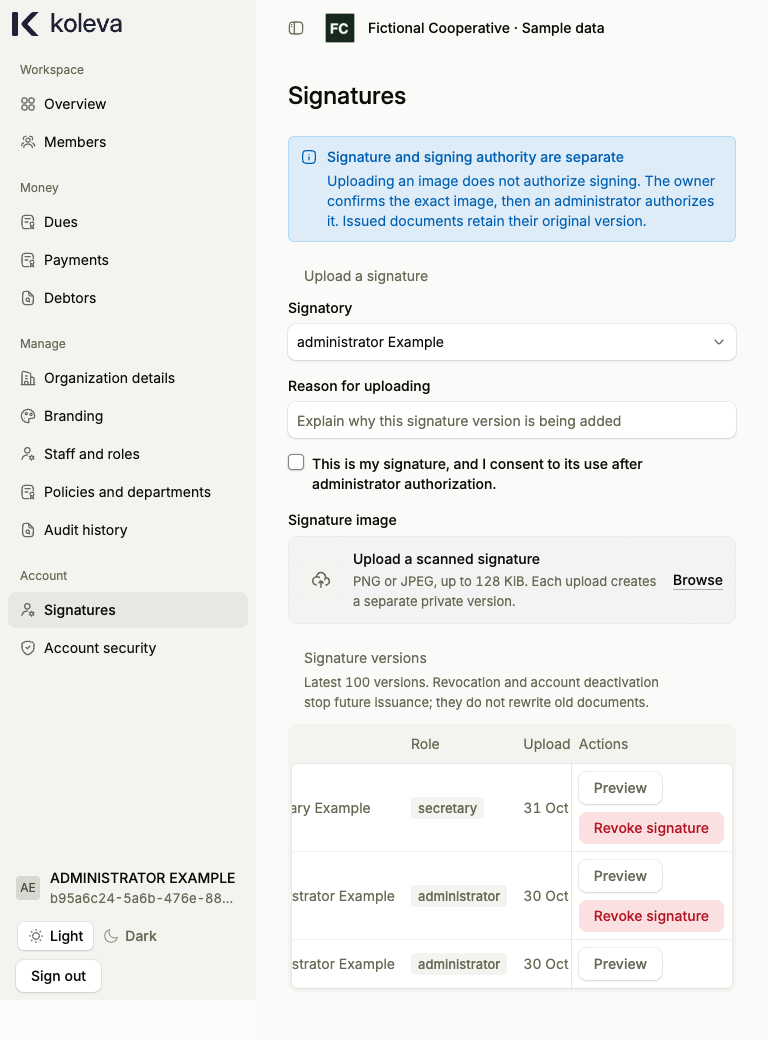
- Select Signatures in the sidebar under Account to set up the signature that appears on official receipts and invoices.
- Under Your signature, choose to sign with your name in italics (no upload needed), draw your signature on screen, or choose a photo of your handwritten signature (your browser crops and cleans the background automatically), then confirm your signature.
- If you are an Administrator, your own signature is authorized immediately when you add it. If another staff member adds their signature, an Administrator selects Authorize on that version in Signatures before it can sign documents.
- Select Stop using (or Revoke signature) on a signature version if a staff member should no longer sign new documents; previously issued documents keep their original signature snapshot.
Common questions
Can an Administrator add a signature on behalf of another staff member?
An Administrator can add a name-in-italics or photo signature for another staff member and confirm they have permission, but that staff member must still sign in and confirm ownership of their signature before an Administrator can authorize it for use on documents.
What happens if I lose the phone with my authenticator app?
Use one of the one-time recovery codes you saved when you enrolled two-step verification to sign in and manage your account security.