

Manage and account
Staff, policies, and departments
Invite staff accounts, set your organization policy, manage departments, and review pending proposals.
What this screen is for
The Staff and roles and Policies and departments screens under Manage govern who can sign in to your workspace, which departments your organization runs, and how policies and changes are approved. You also use Audit history in the same section to inspect an attributable log of actions taken in your workspace.
Before you start
- Your organization must be verified and active.
- Inviting staff requires an Administrator role. Each invited staff member must use an email address that is not already registered on another Koleva account.
Step by step
- To invite a colleague, select Staff and roles in the sidebar, enter their name and email address, choose their role (Administrator, Accountant, Secretary, or Clerk) and department scope, and send the invitation.
- To review or update your core rules, select Policies and departments in the sidebar. On the Organization policy tab, choose your financial-year start month, record retention rule, privacy contact, and whether a sole Administrator can approve their own changes, then save or submit the policy.
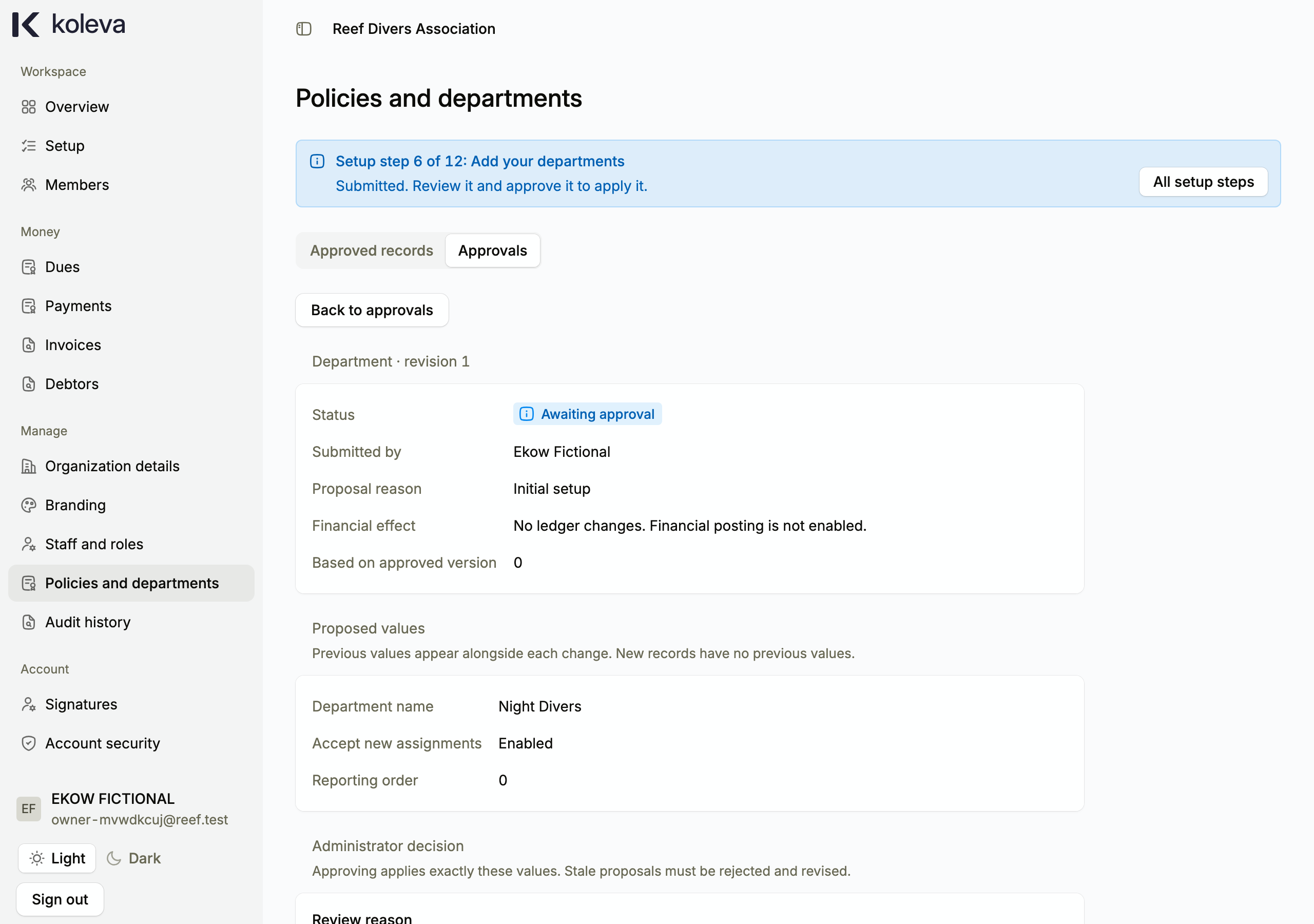
- Select the Departments tab under Policies and departments to view existing departments, or select Add department to propose a new department or rename/close an existing one.
- Select the Approvals tab under Policies and departments to filter and review pending policy and department proposals. Select a proposal, inspect the before and after values, enter a note, and choose Approve or Request changes.
- Select Audit history in the sidebar whenever you need to check who recorded, submitted, or approved an action and when it happened.
Common questions
Why can an invited staff member not accept an invitation while signed in to another account?
Every Koleva account belongs to exactly one organization for its lifetime. If an invitee is currently signed in to another Koleva account in their browser, they must sign out first and create a new account with the invited email address.
When do I need a second Administrator to approve my changes?
During first-time setup while you are the only staff member, your setup changes apply immediately when saved. After setup is complete, if your organization has two or more active Administrators, another Administrator must approve your proposals. If you are the only active Administrator, you can approve your own proposals only when your approved organization policy allows sole-administrator approval.