

Operations
Messages
Send Short Message Service (SMS) and email reminders or statements, email official documents, and manage message templates.
What this screen is for
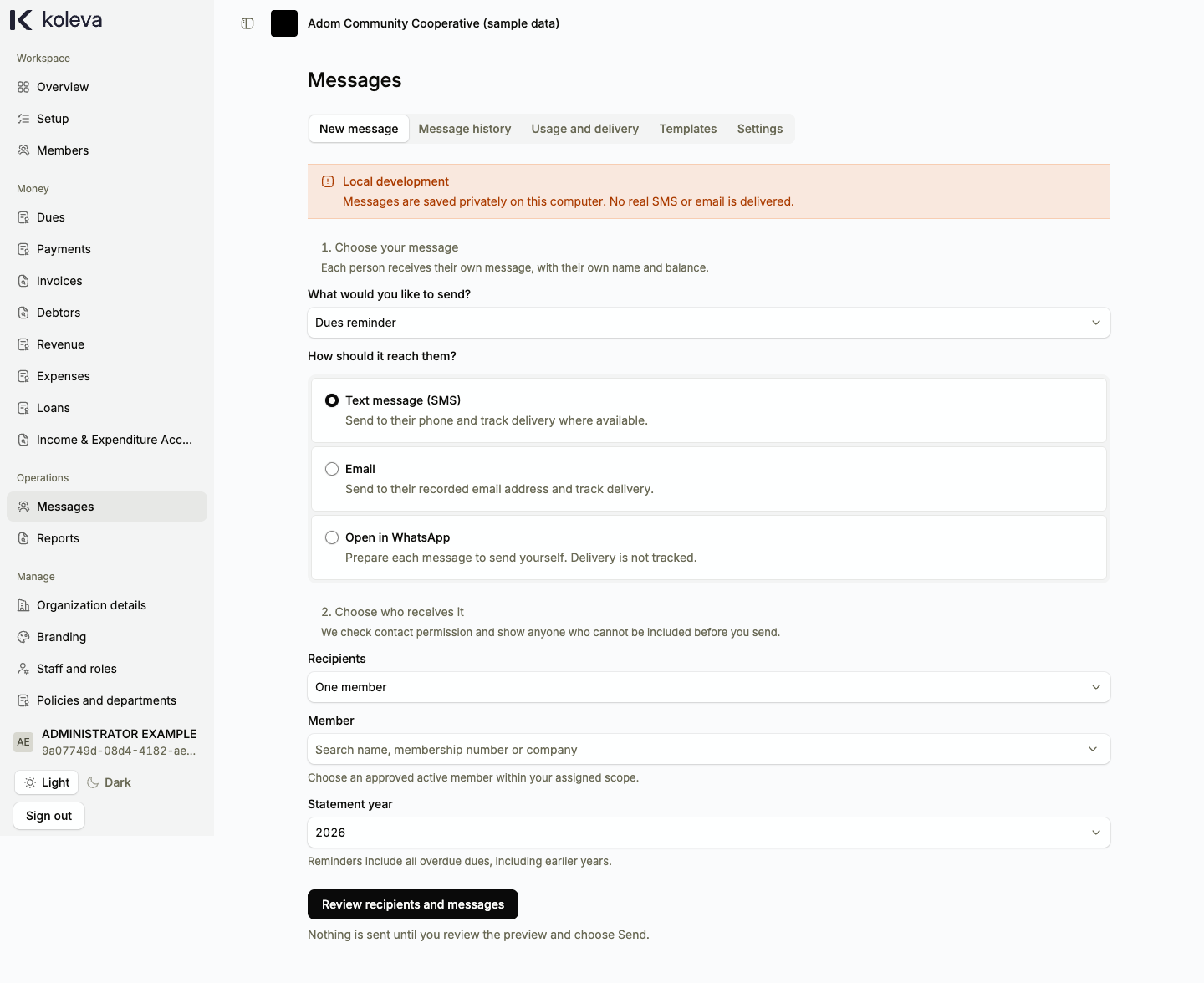
The Messages screen lets staff compose, preview, and send personalized dues reminders, annual statements, payment acknowledgements, and loan reminders to members by Short Message Service (SMS) or email, or prepare messages to send externally through WhatsApp. Administrators also use this screen to customize organization message templates, sending hours, and contact permissions.
Before you start
- Your organization must be active with approved organization policy and membership setup.
- To send live SMS or email messages, both the platform messaging switch and your organization sending switch under Messages -> Settings must be turned on by an Administrator.
- Members must have a valid telephone number (for SMS) or email address (for email) and must not have opted out of messages.
Step by step
- Select Messages in the sidebar to open the New message tab (or select Prepare reminders directly from Dues or Debtors).
- Choose what you want to send (such as a Dues reminder or Annual statement) and how it should reach recipients (Text message (SMS), Email, or Open in WhatsApp).
- Select Recipients (one member, selected members, or all matching members in your department) and choose the statement year.
- Select Review recipients and messages to generate a preview. Check the recipient count, total balance, estimated cost, personalized example, and any excluded members with the reason each person was excluded.
- Select Send to queue the messages for delivery. Nothing is sent until you explicitly select Send.
- Open the Message history tab to check whether each message is waiting, accepted by the provider, delivered, or failed, or open Usage and delivery to monitor your daily message allowance.
Common questions
How do I email an official invoice or payment receipt to a member?
Open the issued invoice or posted payment receipt directly from Invoices or Payments. If the member has an approved email address on file and sending is enabled, use the email panel on that document page to send the official Portable Document Format (PDF) attachment to the member.
Does viewing, printing, or approving a receipt automatically message the member?
No. Koleva never sends a message automatically when you approve, view, or print a record. Every message or document email requires an explicit send action by a staff member.