

Getting started
Guided setup
Complete the five essential steps to open your workspace, then configure modules when you need them.
What this screen is for
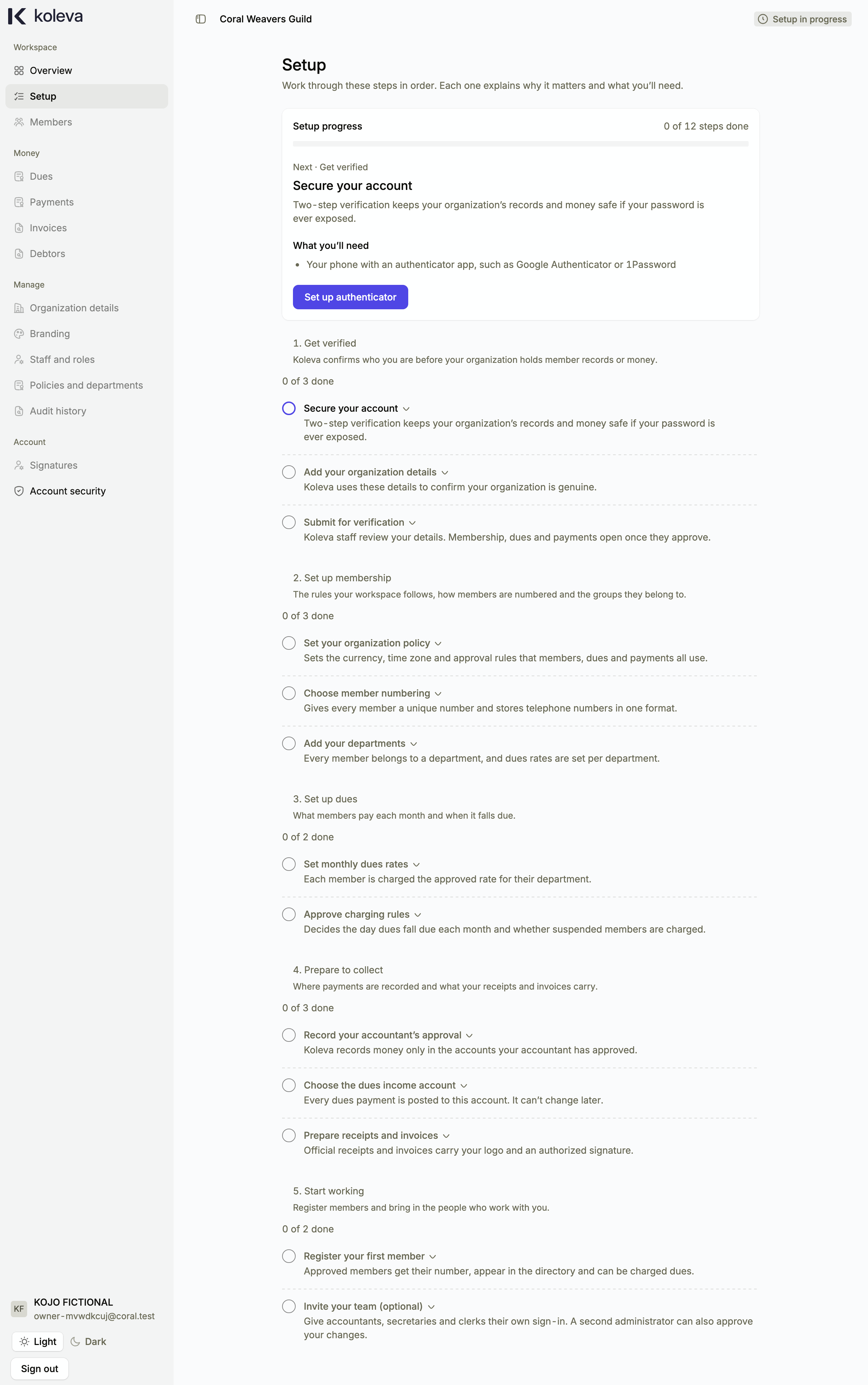
The Setup screen guides you through configuring your organization in the order Koleva requires. Five essential steps unlock all pages in your workspace. The remaining steps are grouped by the work they prepare (Members, Dues, Payments, receipts and invoices, and Your team) so you can complete them when you are ready to use those features.
Before you start
- You need your organization registration number, address, contact email, country, and city.
- You need an authenticator app on your phone for two-step verification.
- Decide which month your financial year starts and what prefix you want to use for member numbers (for example,
KLV).
Step by step
- Select Setup in the sidebar, or select the floating Setup guide in the bottom corner of any workspace page.
- Select Set up authenticator on the first step to turn on two-step verification for your account, and save your recovery codes in a safe place.
- Select Add your organization details, enter your registration number, contact email, country, city, and address, and save the form. Your chosen country and city automatically set your currency, time zone, and telephone code.
- Select Submit for verification so Koleva staff can review and activate your organization.
- Once your organization is verified, select Set policy to choose your financial year start month, record retention period, and privacy contact.
- Select Set up numbering to choose the prefix for your member numbers. This completes the five essential steps and opens your workspace.
- Continue through the remaining groups on Setup when you are ready to add departments, set monthly dues rates, configure money accounts, upload your logo, or add your signature.
Common questions
Why do my changes apply immediately without waiting for approval?
While you are the only staff member in your organization and you have not finished first-time setup, Koleva applies your setup changes as soon as you select Save. Once you invite another staff member or finish all required setup steps, changes follow your organization approval rules.
Can I hide the floating setup guide while I work?
Yes. Select the minimize button on the floating setup bar in the bottom corner to shrink it to a small chip. Your browser remembers your choice.